Release Notes
January 2021
What's New
In our January release, we’re introducing two new features—Always On VPN for iOS and QR Code/COPE Enrollment for Android. We've also got an update on using on-prem domain-joined devices and KACE Cloud MDM.
Features
Always On VPN
Supervised iOS devices can now accept one or more VPN configuration profile(s) that are set as Always On. An Always On VPN configuration provides an automated IKEv2 connection to a VPN without any action being required by end users.
The Always On checkbox can be found in the ‘Add New iOS VPN Configuration’ workflow.

Learn more about Always On VPN.
Android COPE for QR Code Enrollment
Corporate-owned, personally-enabled device management is now available for Android 11+ devices using the QR code enrollment workflow.
Corporate-owned, personally-enabled device management lets an admin provision Android devices with company-approved permissions and restrictions, but also allows personally-enabled options for the end user. Similar to the bring-your-own-device model, COPE offers more company control when it comes to applications, integration and security, but supports the end user’s need for one-device convenience when performing non-enterprise functions.
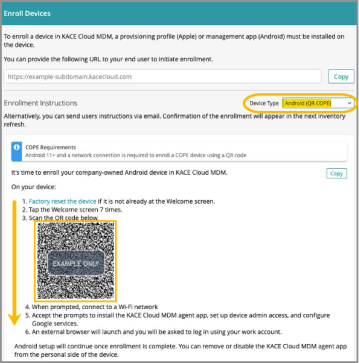
Learn more about Android - QR Code/COPE enrollment.
Updates
On-Prem Domain-Joined Devices
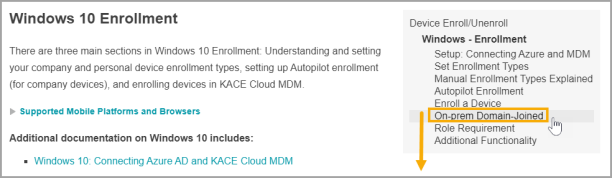
KACE Cloud MDM customers with an on-premise domain containing Windows 10 PCs can automatically enroll these devices in KACE Cloud MDM using Active Directory Group Policy. Automatically enrolling through Group Policy requires an active Azure AD subscription.
To review the workflow for Group Policy Enrollment Using Azure AD, and a list of commonly asked questions, please review the Windows Enrollment section.
Additional Resources
Resolved Issues
Bug fixes are included in the resolved issues list for two release periods and are then retired.
| Issue | Description | Status |
|---|---|---|
| 4754 - API: Sending the update app command to devices that do not have the app installed. | Bulk updating an Android system app would result in the app getting installed on devices where it did not originally exist. | FIXED |
| 4752 - API: The history logger is writing an error to the wrong record. | The device history record for an iOS app install with a VPP license assigned to a user was indicating a failure when the install was successful. | FIXED |
| 4713 - UI: Enrollment link for Android devices doesn't display properly | The enrollment URL in the enrollment instructions for Android was not showing correctly. | FIXED |
| 4695 - App Updater Adding Apps To Devices | Bulk updating apps from the Devices tab results in apps being installed on devices where they did not previously exist. | FIXED |
| 4674 - API: Apps with "Install As Managed" not checked, do not reconcile inventory | Custom macOS apps with the "Install as Managed" option unchecked were not getting installed. | FIXED |
| 4665 - Handle Errors In DEP Session Token Request | Invalidated DEP enrollment token errors were not getting displayed properly in the DEP enrollment screen. | FIXED |
| 4649 - Android: Restriction command error does not log correctly on device history | When creating a restriction with more than 500 apps, the install command will successfully finish and can be viewed in device history. | FIXED |
| 4647 - UI: Changing device ownership should update enabled state of actions | The admin portal was not updating the state of certain buttons and menu items when the device ownership was changed between "Personal" and "Company". | FIXED |
| 4645 - Device history filter not clearing correctly | The device history filter was not getting cleared when switching to a new device. | FIXED |
| 4644 - History Search Not Returning Results | Searching device history would not return results for all matching records. | FIXED |
| 4643 - Edit Label action redirects incorrectly | When editing a smart label, using 'Back to label library' link will successfully redirect back to label library. | FIXED |
| 4642 - smart label gives incorrect devices | Viewing devices associated with smart label will produce accurate list of devices. | FIXED |
| 4641 - Changing company/personal value for a device may not correctly update policy | Resolved. Device labels are re-evaluated after ownership changes so that app from policy is applied correctly. | FIXED |
| 4639 - macOS BigSur - No Battery Option in macOS Restrictions | When profile is applied, battery icon in system tray is not disabled. | FIXED |
| 4636 - KACE Connect App Crashes w/Locate Command | The KACE Connect app would crash if the admin initiated a device location request while the app was open on the device. | FIXED |
| 4635 - VPP Sync Not Working With Apple B2B Custom Apps | Resolved by enabling custom apps in ABM. | FIXED |
| 4631 - Windows device does not get added to smart label during enrollment | After creating smart label based on Windows inventory, then enrolling Win device with that label, device is correctly added to the smart label. | FIXED |
| 4617 - API MSI and PKG App Marked As "App Catalog" | Win10 MSI and PKG library apps were able to be marked as published in the app catalog. | FIXED |
| 4608 - Windows MSI Installation Not Working With Service Apps | After enrolling device. uploading MSI, and checking "Keep app marked...' checkbox, the app shows as installed as soon as the command succeeds. | FIXED |
Known Issues
© 2021 Quest Software Inc.
ALL RIGHTS RESERVED.
This guide contains proprietary information protected by copyright. The software described in this guide is furnished under a software license or nondisclosure agreement. This software may be used or copied only in accordance with the terms of the applicable agreement. No part of this guide may be reproduced or transmitted in any form or by any means, electronic or mechanical, including photocopying and recording for any purpose other than the purchaser’s personal use without the written permission of Quest Software Inc.
The information in this document is provided in connection with Quest Software products. No license, express or implied, by estoppel or otherwise, to any intellectual property right is granted by this document or in connection with the sale of Quest Software products. EXCEPT AS SET FORTH IN THE TERMS AND CONDITIONS AS SPECIFIED IN THE LICENSE AGREEMENT FOR THIS PRODUCT, QUEST SOFTWARE ASSUMES NO LIABILITY WHATSOEVER AND DISCLAIMS ANY EXPRESS, IMPLIED OR STATUTORY WARRANTY RELATING TO ITS PRODUCTS INCLUDING, BUT NOT LIMITED TO, THE IMPLIED WARRANTY OF MERCHANTABILITY, FITNESS FOR A PARTICULAR PURPOSE, OR NON-INFRINGEMENT. IN NO EVENT SHALL QUEST SOFTWARE BE LIABLE FOR ANY DIRECT, INDIRECT, CONSEQUENTIAL, PUNITIVE, SPECIAL OR INCIDENTAL DAMAGES (INCLUDING, WITHOUT LIMITATION, DAMAGES FOR LOSS OF PROFITS, BUSINESS INTERRUPTION OR LOSS OF INFORMATION) ARISING OUT OF THE USE OR INABILITY TO USE THIS DOCUMENT, EVEN IF QUEST SOFTWARE HAS BEEN ADVISED OF THE POSSIBILITY OF SUCH DAMAGES. Quest Software makes no representations or warranties with respect to the accuracy or completeness of the contents of this document and reserves the right to make changes to specifications and product descriptions at any time without notice. Quest Software does not make any commitment to update the information contained in this document.
If you have any questions regarding your potential use of this material, contact:
Quest Software Inc.
Attn: LEGAL Dept.
4 Polaris Way
Aliso Viejo, CA 92656
Refer to our website (www.quest.com) for regional and international office information.
Patents
Quest Software is proud of our advanced technology. Patents and pending patents may apply to this product. For the most current information about applicable patents for this product, please visit our website at www.quest.com/legal.
Trademarks
Quest and the Quest logo are trademarks and registered trademarks of Quest Software Inc. in the U.S.A. and other countries. For a complete list of Quest Software trademarks, please visit our website at www.quest.com/legal. All other trademarks, servicemarks, registered trademarks, and registered servicemarks are the property of their respective owners.